|
|

|
|
 |
By using our Netconference tool, you may participate in virtual
conferences on a particular topic around a working paper. This
tool is also freely available to our partners for organizing
meetings to discuss their work and research...
|
 |
|
|
 |
Get
your webcam and headphones with microphone ready,
then download the plug-in
|
|
 |
|
 |
Register
on the speakers’ list to present your work
|
|
 |
|
 |
Enter
the Eurolibnetwork conference room |
|
 |
|
 |
Use
the available netconference tools |
|
 |
|
| |
| Get
your webcam and headphones with microphone ready, then
download the plug-in |
| |
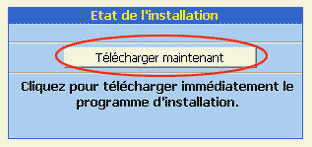
Get your webcam and headphones with microphone ready,
then download the plug-in. Install your webcam (a CD-ROM
for installing the webcam is generally supplied) |
| |
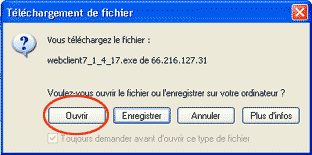
Click on the "open" button to launch
the installation |
| |
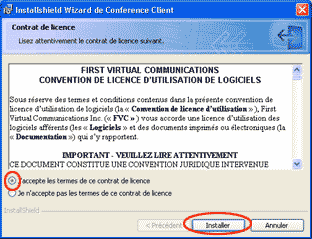
Click on the button "I accept"….
… then on "Install" |
| |
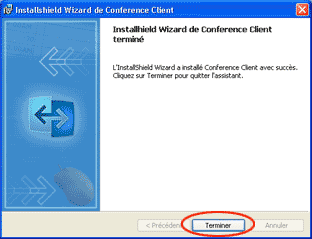
Click on the button "Terminate". You have successfully
installed the plug-in ! |
|
|
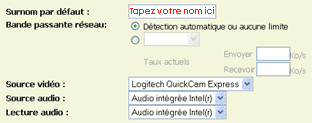
Enter your name. This name will be displayed during the
cyber-conference to make your identity known. You may
now use our netconference tool. |
|
|
| Enter
the Eurolibnetwork conference room |
|
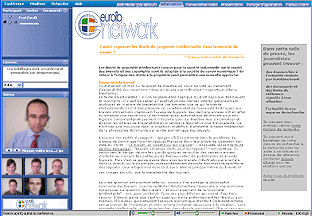
On the date and hour of
the video-conference, click on the link which was sent
to you by email and enter our cyber conference room.
You may now attend the conference and participate actively
at all times.
|
|
|
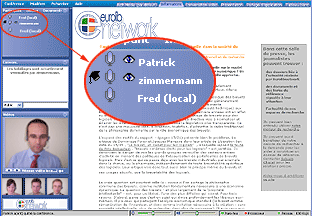
A specific icon
(a hat) appears next to the name of the person currently
presenting her work. |
|
| |
| Register
on the speakers’ list to present your work |
|
|
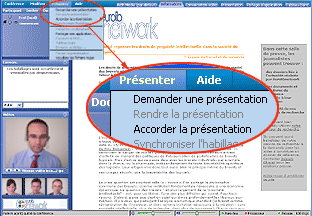
At any moment, you may ask to speak
using the menu Present/ask for a presentation. |
|
| |
| Use
the available netconference tools |
|
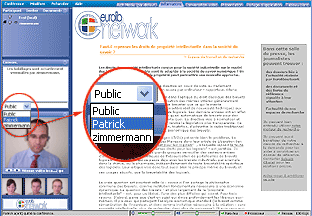
CHATROOM :
At any time you may communicate through the chatroom
by sending your message to all participants or to a
particular person by selecting her name in the menu
|
|
SURF ON THE INTERNET :
During your presentation, you may surf on the internet.
The pages used will be viewed by all participants. To
do so, go to the tab “Presentation” and
enter the URL of the site you wish to present, then
browse as usual.
You may also underline titles or paragraphs on the page
of a site by clicking on the button “Pencil”
|
|
|
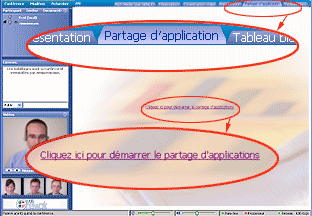
SHARING A DOCUMENT
:
If you wish to present a document to all participants,
open first your document, click on the tab "Share
an application "and click on the link "Click
here to start sharing the application"
|
|
|
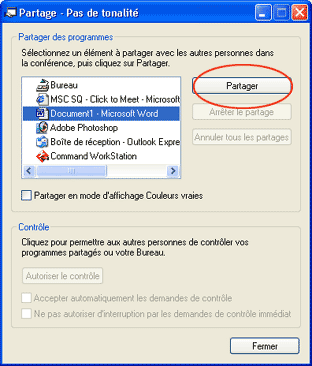
The sharing window opens, select the document you wish
to share and click on the button "share".
Then put your document on full-screen and present your
comments. |
|
|
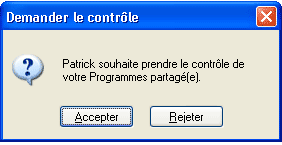
Participants may ask to comment on your document at
all times. A window will then open and the name of the
person wishing to speak will appear. To accept her comments,
click on the button “Accept”
You may regain the control over your document at any
moment by pushing any button on your keyboard.
|
|
|
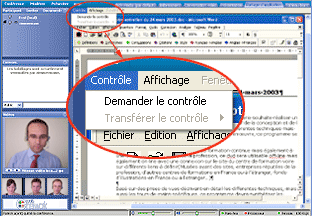
When you would like to comment on somebody else’s
document, click on the menu "control/ask for control"
|
|
|
|